


How to convert WebP to JPG without losing quality

You saved an image from a website, and it came down as a .webp file. Now your photo editor won’t open it, or the upload form you need only accepts JPG. How do you fix this?
The fix is quick and easy: convert WebP to JPG. This guide shows you how to do it with Tinify’s free online image converter, how to handle whole folders at once, and what actually changes when you switch formats. With 10 million images compressed and converted every year, Tinify makes image optimization and format conversion simple and accessible.
TL;DR
In short, convert WebP to JPG when you need a file that opens anywhere: an editor, an upload form, a print shop. Keep WebP when the image lives on your website. And whichever way you go, compress as you convert, so you get the compatibility of JPG without the extra file size. Tinify’s image optimizer at tinypng.com converts and compresses in one step.
What is a WebP file?
And why won’t it open?
WebP is an image format Google introduced in 2010 to make web images smaller to speed up websites. A WebP file can be lossy (like JPG), lossless (like PNG), transparent, and animated, all in one format (Read: Lossy vs lossless explained).
The big draw is file size. WebP images are typically around 30% smaller than JPG and PNG files at the same visual quality. That’s why so many websites now serve WebP by default: smaller images mean faster pages for visitors.
So why does your WebP file refuse to open? Every modern browser now supports WebP, but plenty of other software is still catching up. You might run into such problems with:
Older photo editors and image viewers
Upload forms that only accept JPG or PNG
Some print services, document tools, and email clients
JPG, on the other hand, works almost everywhere. Converting your WebP to JPG gives you a file you can open, edit, and share without thinking about compatibility.
JPG vs JPEG: what’s the difference?
JPG and JPEG are the same image format with two spellings of the file extension. Early versions of Windows only allowed three-letter extensions, so “JPEG” was shortened to “JPG.” Mac and Linux never had that restriction, which is why both versions are still around today.
A .jpg file and a .jpeg file are technically identical. Any app that opens one will open the other.
How to convert WebP to JPG with Tinify
The fastest way to convert WebP to JPG is in your browser, with nothing to install. Here’s how it works with TinyPNG, Tinify’s image compressor and converter:
01. Go to tinypng.com
02. Switch on the convert toggle and select JPG as your output format.
03. Drag and drop your WebP files (or click the drop box to select images from your device).
04. Download your new JPG files.
Does your WebP have a transparent background? Convert WebP to PNG instead of JPG. JPG doesn’t support transparency like WebP and PNG do, so any see-through areas would be filled with a solid color, usually white.
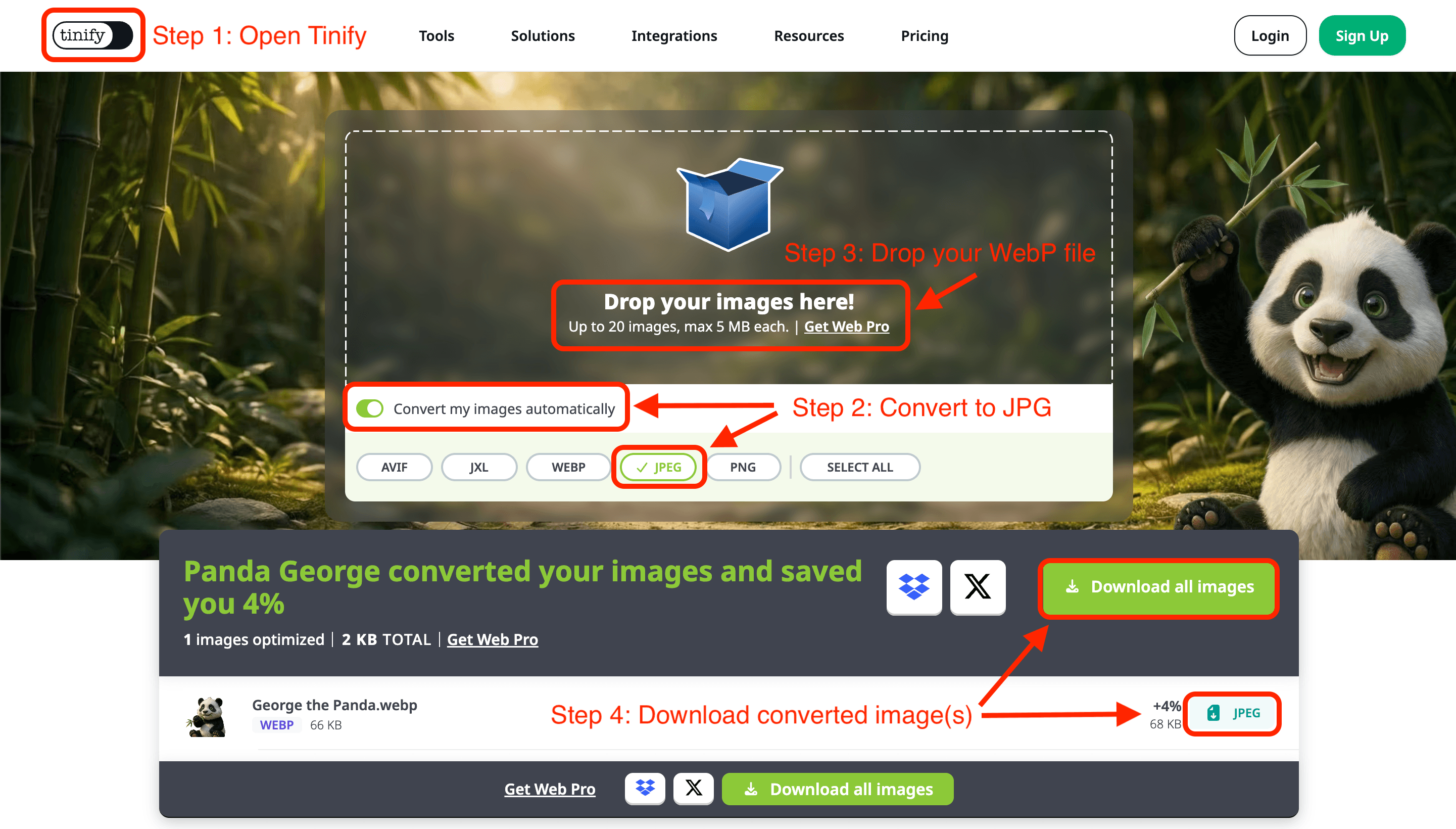
Demonstration of how to convert WebP to JPG using Tinify's TinyPNG image converter
Why compression matters when you convert
Here’s the part most converters skip. JPG is a less efficient format than WebP, so a straight conversion usually gives you a bigger file than the one you started with.
TinyPNG’s image conversion also works as an image file size reducer: it compresses your image as part of the conversion. Its algorithm looks at each image individually (colors, textures, patterns, etc.) and picks the best compression level for that specific file. On average, Tinify reduces JPG file size by 40-60% with no visible quality loss.
The outcome? A JPG that opens anywhere and still loads fast if you put it back on the web.
Convert your WebP files
Drop in a WebP and download a compressed JPG instantly.
Convert WebP to JPEG in bulk
Converting three images is easy; converting 300 product photos you downloaded from a supplier is a different job.
With Tinify, you have two options, depending on how often you need to do it.
Web Ultra: unlimited conversion in your browser
Web Ultra is a paid subscription that gives you unlimited compression and format conversion on the TinyPNG image converter. It’s a good fit if you convert and compress pictures regularly but don’t want to touch code. Marketing teams, content editors, and online store owners tend to land here.
The developer API: conversion on autopilot
If images flow through your systems every day, the Tinify developer API can handle WebP to JPEG conversion automatically. It supports compress, convert, resize, and crop in one request, and can save results straight to Amazon S3 or Google Cloud Storage.
Client libraries are available for Ruby, PHP, Node.js, Python, Java, and .NET, so you can plug it into whatever your team already uses. Set it up once, and every image that comes in leaves as a compressed JPG.
Automate your conversions
Convert and compress WebP images to JPG automatically
What changes when you convert WebP to JPG
Converting buys you compatibility, but JPG can’t do everything WebP can. Here’s how the two compare:
| Category | WebP | JPG |
|---|---|---|
| File size | Around 30% smaller than JPG at the same visual quality | Larger file size than WebP at the same visual quality |
| Transparency | Supported | Not supported |
| Compatibility | All modern browsers, but not yet on many apps and tools | Widely supported |
| Best for | Images on your website | Editing, sharing, printing, uploading |
Two things are worth checking before you convert.
Transparent backgrounds. JPG has no transparency, so any see-through areas get filled with a solid color, usually white. If you need to keep a transparent background (e.g., for a logo or product cutout), convert to PNG instead.
File size. Even with compression, a JPG is usually larger than the WebP it came from. For a one-off upload, that rarely matters. For images on your website, it does.
When to keep WebP instead
If the image is going on your own website, don’t convert it to JPG. When you optimize images for the web, the goal is the smallest file that still looks sharp, and WebP is built for that exactly. Smaller files mean faster load times, which feeds directly into your page speed and Core Web Vitals. Keep WebP, or go a step further with AVIF, which often compresses even better.
If you’d rather not manage formats by hand at all, the Tinify CDN automatically serves AVIF and WebP to visitors whose browsers support them.
Check your page speed
See how much load time you could save by optimizing the images already on your site.
Frequently asked questions
01. Does converting WebP to JPG reduce image quality?
Not visibly, if it’s done well. Tinify uses smart lossy compression, which removes data your eyes can’t detect. Keep in mind that converting can’t add back details that were lost when the WebP was first created, so start from the best version of the image you have.
02. Can I convert WebP to JPG for free?
Yes. The free web tool converts up to 3 images at a time. For bigger batches or file sizes, Web Ultra gives you unlimited conversions.
03. Why is my new JPG bigger than the original WebP?
WebP compresses more efficiently than JPG, so the same image takes up more space as a JPG. Compressing during conversion closes much of that gap, but a JPG will usually still be a little larger.
04. Should I convert WebP to PNG instead?
Choose PNG if your image has a transparent background, such as a logo. PNG files are usually larger than JPGs, but Tinify’s PNG compression reduces them by 50-80% on average.
05. Can I convert a JPG to WebP as well?
Yes. Tinify conversion supports the following output formats: WebP, AVIF, PNG, JPEG, and JPEG XL. Just note that each lossy conversion can lose a little detail, so it’s best to keep your original files and not over-compress your images.