


3 free image optimization tools for entrepreneurs

Just like pandas, early-stage entrepreneurs are often loners, getting their businesses off the ground with as few resources as possible. If you’re an entrepreneur launching your first webshop or portfolio site, your photos are likely the heaviest files on your site. Large photos slow your pages down, which keeps customers waiting and can hurt your SEO. Image optimization is one of the quickest ways to speed up a website by shrinking image files without visible quality loss.
Here are three free business tools from Tinify, picked for entrepreneurs and small business owners. Together, they help you find the problem, fix it, and keep it fixed as your business grows.
TL;DR
A faster site doesn’t need a big budget. If you’re looking for free tools for entrepreneurs and small businesses, start with these three:
01. Check your page speed with Tinify’s Page Analyzer to see how much time your images cost you.
02. Compress and convert images for your website with Tinify’s web tool. JPEGs shrink by 40-60% and PNGs by 50-80% on average.
03. Install the WordPress plugin so every new upload is optimized automatically.
Working in other tools too?
Tinify also has a Figma plugin for designers, a Make plugin for no-code workflows, and community plugins for other platforms.
Once you’ve compressed your images, run the Page Analyzer again and compare. Small fixes add up, and George the Panda approves.
Why image optimization matters for a new business website
Your website loading speed affects two things every new business cares about: whether visitors stay, and whether they find you in the first place.
Visitors. Google measures loading speed with Largest Contentful Paint (LCP): the time it takes for the biggest visible element on a page to appear. On a webshop or portfolio site, that’s usually a hero image or product photo. Google recommends an LCP of 2.5 seconds or less and rates anything over 4 seconds as poor.
Search. Core Web Vitals, a set of three speed and stability metrics that includes LCP, are used by Google’s ranking systems. Good scores won’t guarantee a top spot, since Google weighs many other signals too. But a slow page puts you at a disadvantage you can avoid.
That’s why website image optimization pays off quickly. If you’re trying to improve ecommerce site speed, your product images are usually the first place to look. If your largest element is an image, its file size feeds straight into your LCP. Smaller files mean faster pages, without changing anything about your design.
Want to learn more? Here are 7 critical reasons your images are slowing down your website.
01. Check your page speed with Tinify’s Page Analyzer
Start by finding out how much your images are costing you. Tinify’s website image analyzer is free and shows how much load time you’d save by compressing the images on a page.
How to use it:
01. Go to Page Analyzer
02. Enter the URL of the page you want to test
03. Check the results to see how much page load speed you can save from image compression.
Tinify’s homepage performance is fully optimized for page speed SEO.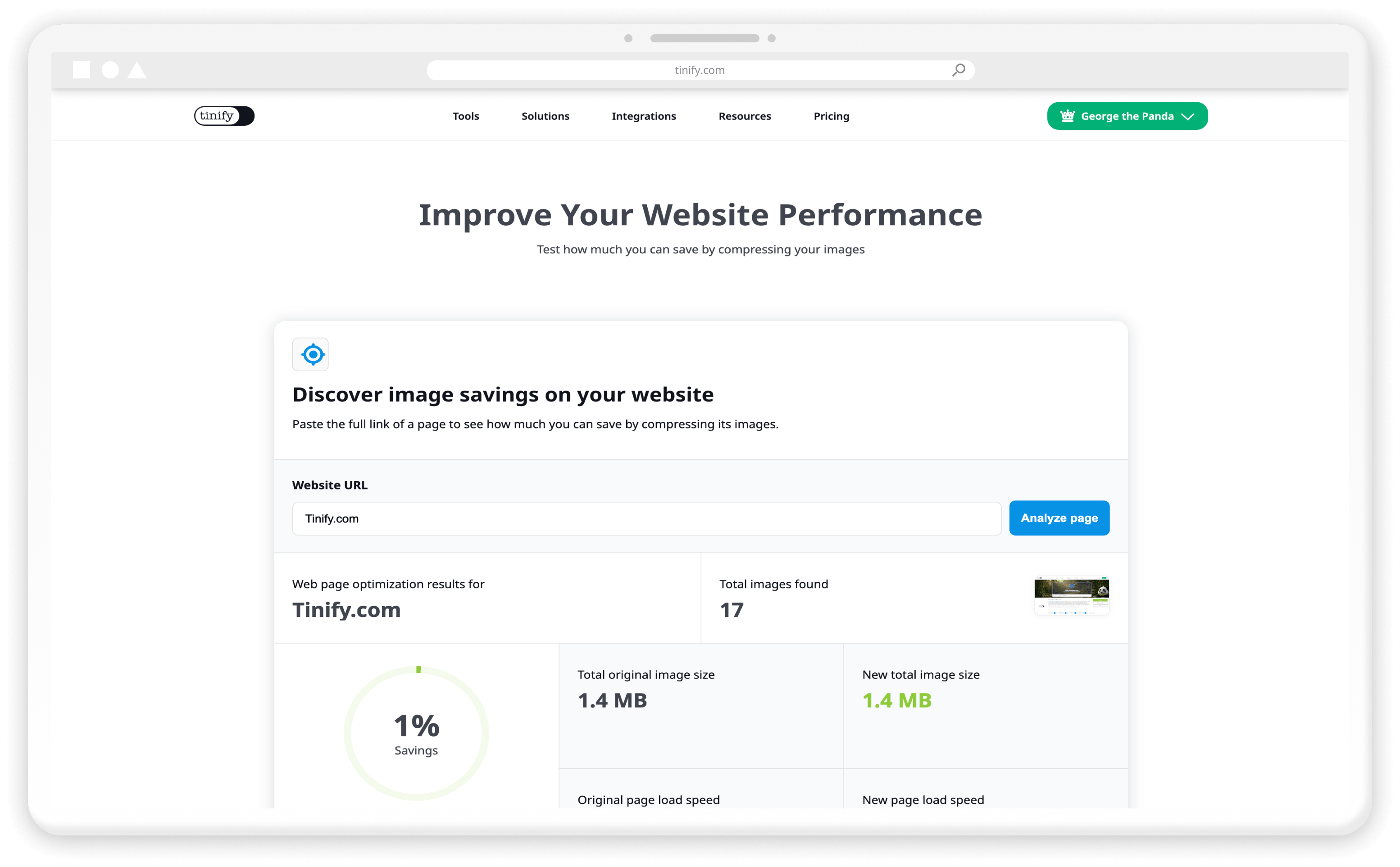
Not sure which page to test first? Start with your homepage, your best-selling product page, or your portfolio gallery. These tend to carry the most images, and they’re often where new visitors land.
Free online tools like Google’s PageSpeed Insights or GTmetrix can test how many seconds your website takes to load. However, if your website is image-heavy, Tinify’s analyzer tool helps by showing you exactly how many seconds you can save by compressing your images.
Check your page speed
See how much load time you could save by compressing your images.
02. Compress and convert images with Tinify’s free image optimizer
Once you know what you could save, it’s time to shrink your files. That’s the core of image optimization for the web.
Tinify’s free image compressor uses smart lossy compression: it permanently removes image data, but only the data your eyes won’t notice. The algorithm analyzes each image individually, looking at its colors, textures, and patterns, to pick the right compression level. On average, JPEG files shrink by 40-60% and PNG files by 50-80%, with no visible loss in quality.
How to optimize your website images:
01. Go to tinypng.com
02. Drag and drop up to 20 images at once, up to 5 MB each.
03. Download your compressed images and upload them to your webshop or website.
TinyPNG image compressor compressed 11 PNG files and saved 66% of the total file size.
The image compressor works with JPEG, PNG, animated PNG, AVIF, JPEG XL (JXL), SVG, HEIC, and WebP files, so it handles e-commerce images, portfolio shots, blog graphics, and more.
With the free tool, you can compress up to 20 files at a time, with a maximum file size of 5 MB each. This works if you’re just getting started, but if you have a larger amount of images to compress, consider upgrading to one of our web subscriptions to remove the limits.
See the difference yourself
Tinfiy compresses over 40 million images per year.
Convert to WebP for smaller files
If your website platform accepts “modern formats” like WebP and AVIF, converting to these formats can save you even more. Converting a PNG or JPEG to an AVIF or WebP image can cut file size by about 30% at the same quality.
With Tinify, converting files compresses your images at the same time, so you get the best result in one upload. The converter works both ways for all five supported formats: PNG, JPEG, WebP, AVIF, and JXL. Therefore, you can easily convert PNG to WebP for smaller file sizes on your site, and convert WebP to PNG if a social media platform doesn’t accept WebP files yet.
Converting is free for up to 3 images per session. Upgrading to Web Ultra can remove the conversion limits.
When you need more
Adding new products or portfolio pieces every week? Web Pro gives you bulk compression and higher file upload limits. Web Ultra adds unlimited compression and format conversion. Check out our pricing tables for more information.
Compress and convert
Drop in a product photo and watch the file size shrink.
03. Automate WordPress image optimization with the Tinify plugin
If your site runs on WordPress or WooCommerce, the free Tinify WordPress plugin saves you all the manual steps mentioned above. Our plugin compresses every image automatically as you upload and replaces the original with the new, lighter version. That includes WooCommerce product images, so new products are compressed as soon as you add them to your store. Simply install, set up, and we do the rest.
It uses the same compression as the web tool, so you get the same savings on every upload. Smaller files also take up less storage on your hosting plan and use less bandwidth each time someone visits.
How to optimize images for WordPress with the plugin:
01. Install and activate the plugin from the WordPress plugin directory
02. Connect your Tinify account in the plugin settings.
03. Upload images as usual. The plugin compresses each one on upload.
TinyPNG WordPress plugin (by Tinify) supports JPEG, PNG, WebP, and AVIF files. 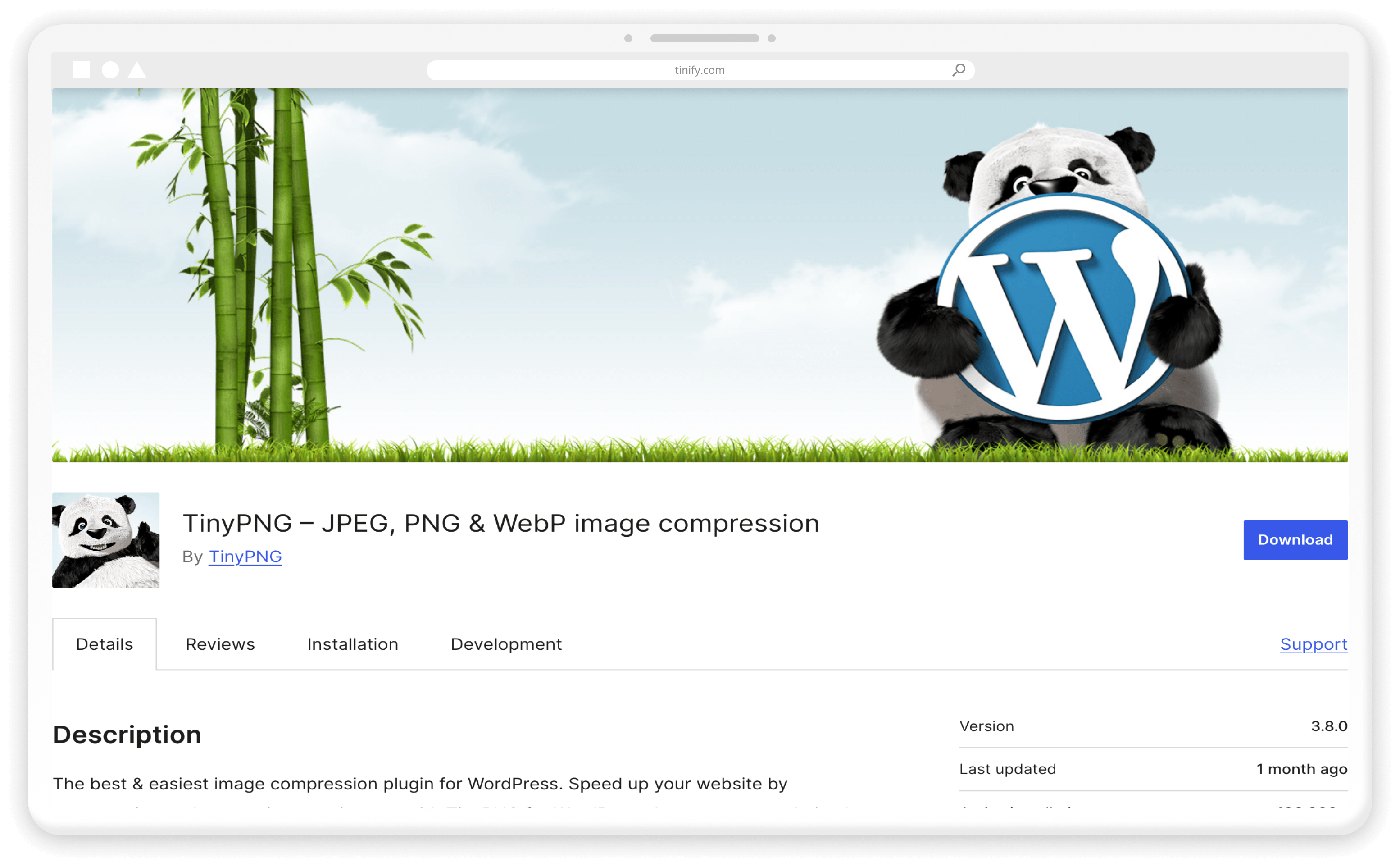
Our step-by-step guide to the WordPress plugin covers the settings in more detail.
Automate your uploads
Install the plugin and every new image gets compressed as you upload it.
What the free plan covers
The free plan includes 500 compressions a month. WordPress saves several thumbnail sizes of every image you upload, and each size counts as one compression. With standard thumbnail settings, that’s roughly 100 images a month, which is plenty for most new sites.
If you need to compress and convert more images, we also offer pay-per-compression pricing starting at $0.009 per compression, and a credit bundle starting from $9. You can find more details on our developer API pricing page.
Frequently asked questions
01. How do I optimize images for the web without losing quality?
Tinify’s intelligent algorithm uses a smart lossy compression technique to determine the best optimization levels tailored to each image's colors, textures, and patterns. It also strips unnecessary metadata, such as the time and location the photo was taken.
Therefore, Tinify’s image compressor can significantly reduce file size while maintaining images’ visual quality.
02. What happens to the images I upload to tinypng.com?
Tinify keeps uploaded images for a maximum of 48 hours, then permanently deletes them. Nothing stays on Tinify’s servers after that, including unpublished product photos or client work.
03. My site isn’t on WordPress. Can I still automate image optimization?
Yes. If you know a bit of coding/vibe coding, Tinify’s image compression API can compress, convert, resize, and crop images automatically on your site. It has libraries for Ruby, PHP, Node.js, Python, Java, and .NET. If you’d rather not code, Tinfiy also connects with no-code tools like Make.com and Zapier.
04. Does page speed affect SEO?
Yes, but it’s one signal among many. Google says it always aims to show the most relevant content, even when a page is slow. Where lots of pages answer a search equally well, a faster page can give you the edge. Re-run the Page Analyzer to check if your page speed still needs improvement.
05. What is image optimization in SEO?
Image optimization in SEO covers two jobs: making images load fast and helping search engines understand them. Compression takes care of the first.
To optimize images for SEO beyond that, give each image a descriptive file name and alt text, a short written description of what it shows. Google uses alt text, along with the page around it, to understand what an image is about.