TinyPNG’s background remover is here: Clean cutouts without the manual masking

TinyPNG now has an image background remover. Upload a PNG, JPEG, JPEG XL, HEIC, AVIF, or WebP file, and a few seconds later you get the subject back on a transparent background, ready to use.
It’s been one of the most requested features from TinyPNG users, especially people running online stores, building marketing assets, or just trying to get a clean product shot without opening a photo editor. Here’s what it does and how to use it.
Why remove the background from an image?
A clean cutout puts all the attention on your subject. That matters most for product photography. When every listing sits on the same plain background, your catalog looks consistent, and you get a transparent PNG you can drop onto a store page, ad, slide, or design without reshooting or re-editing. Think of it as a transparent background maker: one upload, and your subject is ready for any layout.
Doing it by hand means tracing the subject with a pen tool, photo after photo. It takes time and a steady hand. With TinyPNG’s background remover, you upload the photo and get the cutout back in seconds.
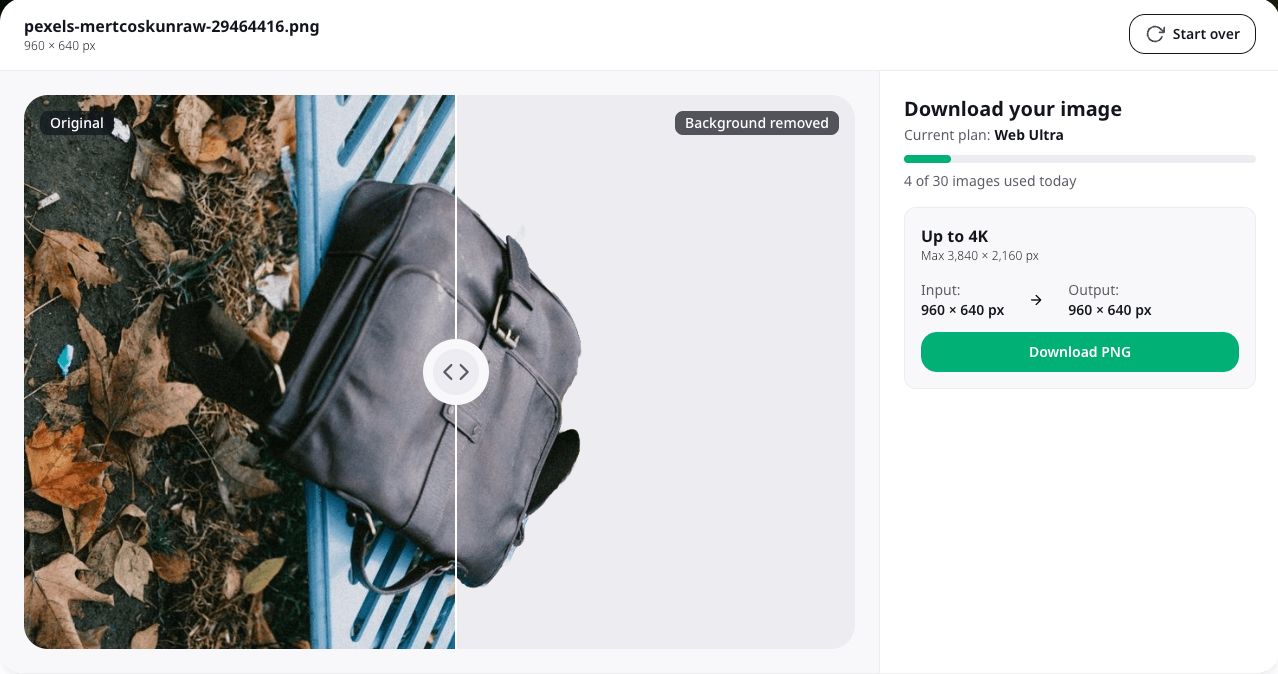
What you get with TinyPNG’s background remover
Clean edges, even around hair and fur. The tool traces the subject closely, including fine details, so the cutout looks natural, not clipped.
No manual masking. TinyPNG finds the subject automatically. No pen tool, no selection brushes.
One step, not several. Drag and drop your photo, and download a transparent PNG. There's no separate export step or format conversion to think about; that part happens automatically.
See the cutout yourself
Drop in a product photo and get a transparent PNG back in seconds.
How to remove background from image files with TinyPNG
Go to TinyPNG and open the background remover
Upload your photo (PNG, JPEG, HEIC, WebP, AVIF, or JPEG XL)
TinyPNG’s background removal tool automatically detects the subject and removes everything behind it
Download your image as a transparent PNG
Every result comes back as a PNG, because it’s the widely supported format that keeps transparency. JPEG can’t store transparency, so a JPEG upload also comes back as a PNG.
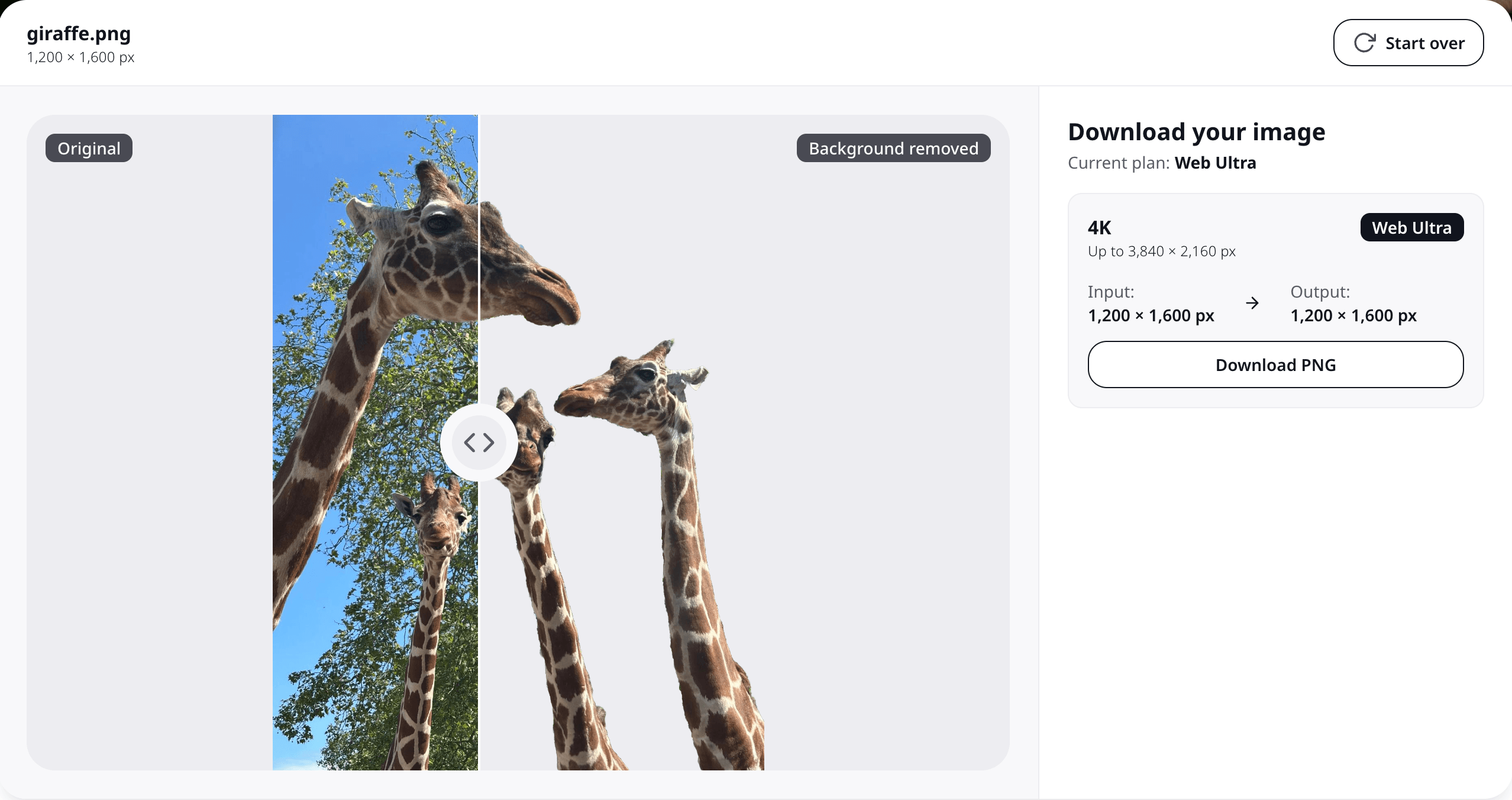
TinyPNG’s transparent PNG maker compares your image before and after background removal.
Who it’s for: Practical use cases
Product photography. Shoot against whatever backdrop you have, remove background from photo files in seconds, then give every listing the same clean cutout. Shoppers focus on the product instead of a cluttered background, and a uniform look makes the whole store feel more polished. If the original background wasn’t perfect, there’s no need to reshoot.
Logos and icons. Need to remove background from logo files? Upload it and get a transparent PNG that sits cleanly on a website, deck, or design file. It also works when you need to remove white background fills from logos saved on solid white.
Design and marketing assets. Once you have a transparent cutout, you can reuse it. The same subject can go on an ad, a social post, a banner, or a mockup without redoing the edit each time.
Presentations. Product or team photos sit cleanly on your slides instead of clashing with your template.
Free background remover limits
Unlock more with Web Pro and Web Ultra.
You can use the background remover on Web Free without an account. It works with images up to 5 MB, gives you 5 removals a day, and returns cutouts in HD. That covers most everyday jobs, like a product photo for a listing, a headshot, or a logo for a slide deck.
If you're working with larger files or need higher-resolution exports, Web Pro and Web Ultra accept bigger files and allow more background removals per day. Web Ultra also supports cutout resolutions up to 4K, which works well for high-resolution product shots and print-ready images.
| Subscription Type | Web Free | Web Pro | Web Ultra |
|---|---|---|---|
| Account needed | Not needed. | Yes | Yes |
| Max file size | 5 MB | 75 MB | 150 MB |
| Cutout resolution (pixels) | Up to HD (1280 x 720 px) | Up to HD (1280 x 720 px) | Up to 4K (3840 x 2160 px) |
| Removals per day | 5 | 10 | 30 |
Note: The resolutions in the table are for landscape photos. Portrait and square photos get the same total number of pixels, arranged in their own shape, so they aren’t cropped or squeezed to fit a landscape frame.
Need bigger files or sharper exports?
Unlock 4K resolution and more image background removed.
What’s next?
Background removal now sits alongside TinyPNG’s free image compressor and converter, so you can cut out, convert, and compress photos all at tinypng.com.
Note that removing the background doesn’t shrink the file on its own, so if the cutout is headed for your website, compress PNG before you publish it. TinyPNG reduces PNG files by 50 to 80% on average, with no visible quality loss.
Pro tip: Convert PNG to WebP for even smaller file sizes, while keeping the transparency. WebP files are often 30% smaller than PNG at the same visual quality.
Frequently asked questions
01. Does background removal reduce image quality?
No. TinyPNG keeps the subject at full quality and only removes the background. Tricky edges like hair and fur are refined so the cutout looks clean and natural. Web Free and Web Pro return cutouts in HD (1280 x 720 pixels), so larger photos come back at that size; while Web Ultra returns cutouts up to 4K (3840 x 2160 pixels).
02. Does removing the background also reduce my file size?
Not on its own. Background removal focuses on the cutout, not compression. If you want a smaller file size, run the image through TinyPNG’s image compressor afterward.
03. Can I remove backgrounds from multiple images at once?
Not right now. The background remover processes one image at a time. Every plan includes daily background removals: 5 per day with Web Free, 10 per day with Web Pro, and 30 per day with Web Ultra.
04. What's the best background remover tool for everyday photos?
No single tool fits every case, but for product shots, logos, and everyday images, TinyPNG’s background remover handles PNG, JPEG, WebP, AVIF, JPEG XL, and HEIC files without manual masking, making it a solid option for anything short of specialized photo editing.
05. Do I need professional background remover software for this?
Not for everyday images. TinyPNG’s online background remover handles product photos, logos, and marketing images automatically, so you don’t need to install dedicated editing software for a clean cutout.
06. Can I use this as a white background remover?
Yes. TinyPNG removes the background whether it’s white, colored, or busy, and gives you a transparent PNG. From there, you can place the subject on white or any other background you choose.
Related articles
Compress PNG to WebP: Convert and optimize images for faster websites – shrink your transparent cutouts further by switching them to WebP.
Pros and cons of WebP images – where WebP works well and where PNG is still the safer pick.
How to compress and convert images online with Tinify – a simple step-by-step guide to image optimization.